
Netflix Error “Unable to Connect to Netflix” on Smart TV: Causes and Fixes
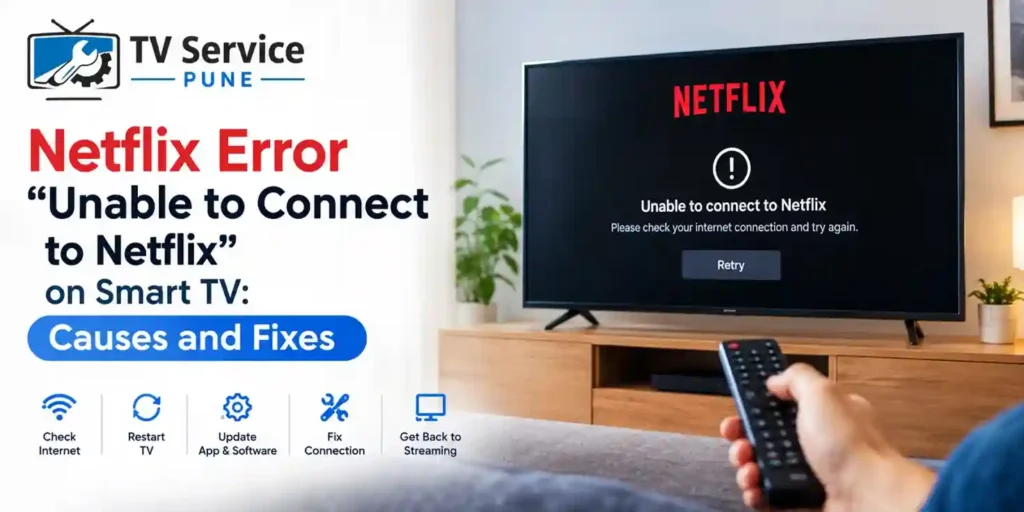
Netflix is one of the most popular streaming platforms for watching movies, TV shows, documentaries, and web series on a Smart TV. However, sometimes you may see the message “Unable to Connect to Netflix” when opening the app. The app may fail to load, display a connection error, or return to the home screen unexpectedly.
A Netflix error on Smart TV can happen because of an unstable internet connection, outdated app software, temporary Netflix service issues, incorrect network settings, or problems with your TV’s operating system.
The good news is that you can often fix the issue at home with a few simple troubleshooting steps. In this guide, we explain the common causes and solutions. If the problem continues after troubleshooting, professional TV Repair in Pune may help identify an underlying Smart TV software or hardware issue.
Still facing Netflix connection issues? Contact TV Service Pune for professional Smart TV troubleshooting and repair assistance.
Why Does Netflix Say “Unable to Connect to Netflix” on Smart TV?
When Netflix cannot establish a connection, the problem may come from your internet connection, the Netflix app, or your television.
Here are some common reasons behind a Netflix connection error on TV:
- Weak or unstable Wi-Fi signals.
- Temporary problems with Netflix services.
- Outdated Netflix app or TV software.
- Corrupted temporary app data.
- Incorrect network or DNS settings.
- Router or modem connectivity issues.
- Insufficient available storage on the television.
- Software glitches or operating system problems.
Identifying the cause can help you choose the right solution instead of repeatedly restarting the app.
10 Ways to Fix Netflix Not Working on Smart TV
If you are experiencing Netflix not working on Smart TV, follow these troubleshooting methods one by one.
1. Check Your Internet Connection
A stable internet connection is essential for streaming Netflix. If your Wi-Fi is slow or frequently disconnects, the app may display an error or remain stuck on the loading screen.
How to fix it:
- Open another streaming app, such as YouTube, on your TV.
- Check whether videos play without buffering.
- Restart your Wi-Fi router.
- Wait about 30–60 seconds after switching the router off before turning it back on.
- Reconnect your TV to the network and open Netflix again.
If other apps also fail to connect, the issue may be related to your internet connection rather than Netflix itself.
For additional troubleshooting, Smart TV Wi-Fi connection problems. It covers common network problems that can affect Smart TV connectivity.
2. Restart Your Smart TV
Sometimes, a temporary software glitch prevents Netflix from connecting properly. Restarting the television can clear temporary issues and refresh its system.
Follow these steps:
- Turn off your Smart TV.
- Unplug it from the power outlet.
- Wait for approximately one minute.
- Plug the TV back in.
- Turn it on and launch Netflix.
If your Netflix app not working on TV issue persists, a full power restart is worth trying before changing any settings.
Note that pressing the power button on some TV remotes may put the television into standby mode rather than fully restarting it.
Having Trouble With Your TV?
Explore common television problems and practical troubleshooting tips to help identify the issue.
3. Check Whether Netflix Is Experiencing an Outage
Sometimes the problem is not your television or internet connection. Netflix may experience a temporary service disruption that prevents users from accessing the platform.
To investigate:
- Check the official Netflix service status information.
- Try opening Netflix on your phone or computer using the same network.
- Check whether other users are reporting similar connection issues.
If Netflix is experiencing a service outage, wait for the service to recover before changing your TV settings.
This can help you determine whether the Netflix server connection error is temporary or specific to your device.
4. Sign Out of Netflix and Sign In Again
Your Netflix session may occasionally encounter an authentication or account-related issue. Signing out and signing back in can refresh your connection.
Steps to follow:
- Open Netflix on your television.
- Navigate to the app’s settings or Get Help menu, if available.
- Select Sign Out or Deactivate.
- Confirm your choice.
- Reopen Netflix and sign in using your account details.
Menu names vary by TV brand and Netflix app version. If the app does not open far enough to access these settings, try the other troubleshooting methods first.
5. Update the Netflix App
An outdated application may have compatibility issues with your TV’s operating system. Keeping the app updated can help resolve certain loading and connection problems.
How to update Netflix:
- Open your television’s app store.
- Search for Netflix.
- Check whether an update is available.
- Install the update if offered.
- Restart the TV and test the application.
Some Smart TVs update built-in apps automatically and do not provide a separate manual update option.
Updating the application is particularly useful when Netflix not opening on Smart TV started after a software change or a prolonged period without updates.
6. Update Your Smart TV Software
Your television’s operating system also plays an important role in app compatibility. Outdated firmware can sometimes cause Netflix errors, freezing, or unexpected app crashes.
To check for updates:
- Open your TV’s Settings menu.
- Find Support, System, About, or Software Update.
- Select Check for Updates.
- Install an available update according to the manufacturer’s instructions.
- Restart the TV after installation.
The exact menu depends on whether you use a Samsung, LG, Sony, Panasonic, or Android Smart TV.
Keep the television connected to a reliable power supply during an update. If the TV is already running the latest software, move on to the next step.
7. Forget and Reconnect to Your Wi-Fi Network
Incorrect network settings or a temporary connection problem may prevent Netflix from communicating with its servers.
Try reconnecting your television to Wi-Fi.
- Open Network Settings on your TV.
- Select your connected Wi-Fi network.
- Choose Forget Network or Disconnect, if available.
- Search for your network again.
- Enter the Wi-Fi password.
- Open Netflix and test the connection.
If possible, temporarily connect the television to another reliable network or a mobile hotspot. If Netflix works on the alternative network, your home router or internet configuration may be responsible.
This step can help resolve a Netflix connection problem on Smart TV caused by your home network.
8. Clear Netflix App Data or Reinstall the App
On supported televisions, corrupted temporary data can cause the app to freeze, crash, or fail to load.
If your TV provides an option to clear the Netflix cache, use it and reopen the application.
On compatible Android TV or Google TV devices, you may find this option under Settings, Apps, Netflix, and Storage. The available options vary by model.
If clearing the cache does not help, consider reinstalling Netflix if your TV allows it.
Important: Clearing app data or reinstalling Netflix may sign you out, requiring you to enter your account details again. Some televisions have Netflix built in and do not support uninstalling the app.
If your television also freezes, takes too long to open applications, or responds slowly, read our guide on why your Smart TV is running slow.
9. Check Your TV’s Date, Time, and Network Settings
Incorrect date or time settings can sometimes interfere with secure connections. Network configuration problems may also prevent the Netflix app from communicating properly.
Check that your television is using the correct date, time, and time zone. Enable automatic settings where available.
If the issue continues, review your network configuration. Avoid changing advanced DNS settings unless you understand the recommended settings for your network.
If you have recently changed your router, Wi-Fi password, or network configuration, restoring the correct settings may resolve the issue.
10. Reset the TV Only as a Last Resort
If none of the above solutions works, a factory reset may help resolve persistent software problems.
However, a factory reset removes saved settings and may delete installed apps or require you to sign in again.
Before proceeding:
- Back up any settings or information you need.
- Make sure you know your account credentials.
- Follow the instructions provided by your TV manufacturer.
- Avoid resetting the television if the issue appears to be a general internet outage.
If the Netflix not connecting on Smart TV problem continues after a reset, professional diagnosis may be necessary.
What to Do If Netflix Keeps Disconnecting on Smart TV?
If Netflix keeps disconnecting on Smart TV, the problem may be caused by fluctuating Wi-Fi signals, router issues, outdated firmware, or an unstable internet connection.
Try these additional checks:
- Move the router closer to the TV, if practical.
- Use a wired Ethernet connection if your TV supports it.
- Restart the router and television.
- Check whether other devices lose their internet connection.
- Install available TV software updates.
- Contact your internet service provider if the connection repeatedly drops.
If only Netflix disconnects while other apps work normally, investigate the Netflix app and its software compatibility before assuming the television has a hardware fault.
What If Netflix Shows an Error Code on TV?
A Netflix error code on TV can provide clues about the cause of the problem. Different codes may indicate network connectivity issues, app problems, or device-specific errors.
If an error code appears:
- Write down the complete error message or code.
- Check Netflix’s official Help Center for that exact code.
- Follow the recommended troubleshooting steps.
- Restart the TV and router if the instructions suggest a connectivity issue.
Avoid applying the same fix to every error code because the recommended solution depends on the specific error and television model.
When Should You Contact a TV Repair Technician?
Most Netflix connection problems can be resolved through basic troubleshooting. However, professional help may be useful when the television has persistent software or system problems.
Consider contacting a technician if:
- Netflix and several other apps repeatedly crash.
- The television freezes frequently or restarts unexpectedly.
- The TV cannot connect to any available network.
- Software updates repeatedly fail.
- The TV becomes unusually slow or unresponsive.
- Network connectivity problems continue after router and settings checks.
These symptoms do not automatically mean that a hardware component has failed. A technician can inspect the TV, identify the underlying cause, and recommend an appropriate repair.
These guides cover symptoms that may require further investigation, although they do not necessarily indicate the cause of a Netflix connection error.
If you are searching for TV repair near me in Pune, choose a service provider who can diagnose Smart TV software, connectivity, and hardware issues before recommending replacement parts.
For homeowners looking for TV Repair in Pune, TV Service Pune offers assistance with Smart TV troubleshooting and television repair. Professional diagnosis can help determine whether the issue is related to software, network configuration, or a faulty component.
Before booking a service, you can also read our guide to LED TV repair cost in Pune to understand the factors that may influence repair expenses.
TV SERVICE PUNE
Looking for TV Repair in Your Area?
Explore our location-specific TV repair services across Pune. Choose your area to learn more about home TV repair options.
Conclusion
The Netflix error “Unable to Connect to Netflix” on Smart TV can be frustrating, especially when you want to watch your favourite shows. Fortunately, restarting your television, checking your internet connection, updating the app, and reviewing network settings can resolve many common problems.
Start with the simplest checks and move to advanced troubleshooting only when necessary. If Netflix continues to fail alongside other apps or your television experiences repeated system issues, professional diagnosis can help identify the cause.
For assistance with persistent Smart TV problems, contact TV Service Pune for Smart TV repair in Pune and get your television checked by a technician.
Frequently Asked Questions
1. Why does Netflix say “Unable to Connect to Netflix” on my Smart TV?
This message usually appears when Netflix cannot establish a connection. Possible causes include an unstable internet connection, a temporary service issue, outdated app software, or incorrect network settings.
2. Why is Netflix not working on Smart TV when the internet is working?
Other apps may work even when Netflix has an app-specific problem. Restart the TV, check for Netflix updates, sign out and back in if possible, and check whether Netflix is experiencing a service disruption.
3. How do I fix a Netflix connection error on TV?
Restart your router and TV, reconnect to Wi-Fi, check the Netflix service status, update the app and TV software, and clear the app cache if supported. Try a factory reset only after other options fail.
4. Why does Netflix keep disconnecting from my Smart TV?
Repeated disconnections may be caused by weak Wi-Fi, router problems, software issues, or intermittent internet service. Test another network to help identify the source.
5. Can a TV software problem prevent Netflix from opening?
Yes. Outdated firmware, app compatibility problems, or temporary system glitches can prevent Netflix from opening. Updating the TV software or reinstalling the app, where supported, may help.
6. When should I book TV repair service in Pune?
Consider professional assistance if multiple apps keep crashing, the TV cannot connect to any network, or persistent software problems remain after basic troubleshooting. A technician can inspect the television and recommend the next steps.