
Chromecast or Google Cast Not Showing on TV: Why the Cast Icon Is Missing
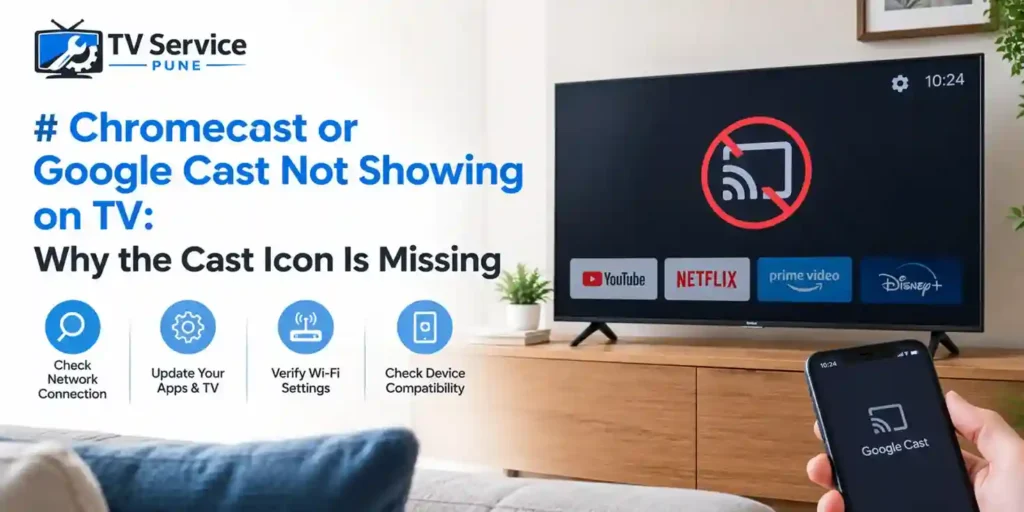
Have you ever tried to stream a video from your phone to your television but found that the Cast icon was missing? If you are facing the issue of Chromecast not showing on TV, you may be unable to stream content from YouTube, Netflix, or other supported apps. This problem can occur because of Wi-Fi connectivity issues, incorrect network settings, outdated software, or problems with your Chromecast device.
Sometimes, the television works normally, but your phone cannot detect it as an available casting device. In other cases, the Google Cast not showing on TV problem may be related to the TV’s built-in casting feature or an external Chromecast device.
Understanding the possible causes can help you troubleshoot the problem and restore casting functionality without unnecessary repairs.
Chromecast not showing on your TV? Contact TV Service Pune for professional Smart TV connectivity troubleshooting and repair assistance.
Why Is Chromecast Not Showing on My TV?
There are several reasons why Chromecast or Google Cast might not appear when you try to connect your phone to your television. Identifying the cause is the first step toward finding the right solution.
1. Phone and TV Are Connected to Different Wi-Fi Networks
One of the most common reasons for Chromecast not connecting to TV is that your phone and Chromecast device are connected to different Wi-Fi networks.
For example, your phone might be connected to your home Wi-Fi while your Chromecast is connected to a guest network. Some routers also separate devices between 2.4 GHz and 5 GHz networks or enable settings that prevent devices from communicating.
How to fix it:
- Connect your phone and Chromecast to the same Wi-Fi network.
- Check whether your router has a guest network enabled.
- Restart your router if the devices still cannot detect each other.
- Confirm that your router is not blocking communication between connected devices.
If the problem continues, check your router settings or contact your internet service provider for assistance.
2. Cast Icon Missing on TV or Mobile Apps
If the Cast icon missing on TV or mobile apps is the main issue, the problem may be related to the app, the TV’s casting settings, or device discovery.
The Cast icon usually appears in compatible apps when a supported casting device is available on the network. If your TV or Chromecast is offline, the icon may not appear or the device list may remain empty.
How to fix it:
- Close and reopen the streaming app.
- Check whether the TV or Chromecast is powered on.
- Update the streaming app to the latest version.
- Restart your phone and television.
- Try casting from another supported app to determine whether the problem affects one app or multiple apps.
If casting works in one app but not another, the issue may be app-specific rather than a television hardware fault.
3. Google Cast Not Detecting Devices
When Google Cast not detecting devices is the issue, your phone may be unable to find your television even though both devices appear to be connected to Wi-Fi.
This can happen because of router restrictions, temporary network errors, outdated software, or disabled casting functionality.
How to fix it:
- Restart your TV and phone.
- Unplug an external Chromecast device for about 30 seconds, then reconnect it.
- Check for available TV system updates.
- Make sure your phone’s Wi-Fi is enabled.
- Review any local network permissions requested by the casting app.
On iPhones and iPads, check the app’s Local Network permission in Settings when applicable. On Android devices, review the permissions required by the relevant app and operating system.
These steps can help restore communication between your devices.
If you experience similar problems while streaming content, read our guide on Netflix unable to connect to Smart TV for additional troubleshooting tips.
4. Smart TV Not Showing Cast Option
Some modern televisions support Google Cast directly, while others require an external Chromecast device or a different screen-mirroring technology.
If your Smart TV not showing cast option problem occurs, first confirm whether your television actually supports Google Cast. Having Wi-Fi or screen mirroring does not automatically mean that a TV supports Google Cast.
How to fix it:
- Check your TV’s specifications or user manual for Google Cast support.
- Look for casting settings in the TV’s network or connected-device menu.
- Install available software updates.
- Confirm that the casting feature is enabled, if your TV provides such a setting.
- If your TV does not support Google Cast, consider a compatible external streaming device.
The exact menu options depend on your TV brand and model.
If your television continues to experience connectivity problems despite trying these solutions, consider professional Smart TV repair in Pune to diagnose persistent television issues.
5. Outdated TV or Chromecast Software
Outdated software can sometimes cause compatibility problems between a phone, streaming app, and television. If casting stopped working after an app or system update, software compatibility may be worth checking.
How to fix it:
- Check for updates to your television’s firmware.
- Update the streaming apps on your phone.
- Check the Google Home app and Chromecast device settings where applicable.
- Restart the devices after installing updates.
Avoid performing a factory reset as the first troubleshooting step. Try the simpler solutions before resetting your device, as a reset may erase settings and require you to configure it again.
How to Fix Phone Unable to Cast to TV
How to Fix Phone Unable to Cast to TV
If your phone cannot find your television or the Cast icon is missing, follow these six troubleshooting steps to identify and fix common Chromecast and Google Cast connection problems.
Follow each step in order for the best troubleshooting results.
Restart Your Devices
Turn off your TV and restart your phone. If you use an external Chromecast, unplug it from power for about 30 seconds before reconnecting it.
Check Your Wi-Fi Connection
Connect your phone and Chromecast to the same local Wi-Fi network. Check your router settings if the devices cannot discover each other.
Test Another Streaming App
Open another compatible app, such as YouTube, and check whether the Cast icon appears. This helps identify whether the issue is limited to one app.
Check Device Permissions
Review the app permissions on your phone. On an iPhone or iPad, check Local Network access for the app you use for casting, when applicable.
Update Your Software
Install available updates for your TV, phone, streaming apps, and Chromecast where applicable. Restart your devices after installing updates.
Restart Your Router
Disconnect your router from power briefly, reconnect it, and wait for the Wi-Fi network to become available. Then try casting again.
Can a TV Wi-Fi Connection Problem Affect Chromecast?
Yes. A TV Wi-Fi connection problem can prevent your television or Chromecast from communicating with your phone.
Even when the TV displays a picture normally, network-related features may not work correctly. Weak Wi-Fi signals, frequent disconnections, router configuration issues, or temporary network failures can interfere with casting.
To troubleshoot the problem, move your router closer to the TV if possible, reduce obstructions, and check whether other connected devices experience similar problems. If your TV frequently disconnects from Wi-Fi, test its network connection using the settings menu.
For more troubleshooting advice, read our guide to Smart TV Wi-Fi issues to understand possible causes of wireless connection problems.
A persistent TV connectivity issues problem may require further investigation, especially if other network-based features, such as streaming apps, also fail to work.
When Should You Contact a TV Repair Service?
Most Chromecast problems can be resolved through basic troubleshooting. However, professional assistance may be helpful if the problem continues after you have checked the network, software, and device settings.
Consider contacting a TV repair service if:
- Your television repeatedly disconnects from Wi-Fi.
- Multiple network-based features stop working.
- The TV freezes or restarts when you open streaming apps.
- Network settings cannot be saved or the TV fails to detect available networks.
- Casting and other smart features stop working despite trying the recommended solutions.
Not every casting problem indicates a hardware fault. A technician should diagnose the issue before recommending repairs or replacement parts.
If basic troubleshooting does not resolve your television’s connectivity or smart features, read our guide to TV repair in Pune near me to learn more about finding professional repair assistance.
TV SERVICE PUNE
Looking for TV Repair in Your Area?
Explore our location-specific TV repair services across Pune. Choose your area to learn more about home TV repair options.
Conclusion
The Chromecast not showing on TV problem can result from network connectivity, missing app permissions, outdated software, or an unsupported casting feature. Checking your Wi-Fi connection, restarting your devices, updating software, and testing another compatible app can often help identify the cause.
If Google Cast not showing on TV continues to affect your television despite these steps, investigate whether the issue is related to your router, casting device, or TV software before considering hardware repairs.
For persistent Wi-Fi, network, or smart TV faults, contact a professional TV repair service in Pune for assistance with diagnosing the underlying issue and recommending an appropriate solution.
Frequently Asked Questions
1. Why is Chromecast not showing on my TV?
Chromecast may not appear because your phone and casting device are connected to different networks, the Chromecast is offline, the app is outdated, or the TV does not support Google Cast. Check your Wi-Fi connection and restart the devices first.
2. Why is Google Cast not showing on TV even when Wi-Fi is working?
Wi-Fi connectivity alone does not guarantee that devices can communicate. Router isolation settings, app permissions, temporary software issues, or unsupported casting features can prevent device discovery.
3. How do I fix the Cast icon missing on TV apps?
Confirm that your TV or Chromecast is powered on and connected to the same local network as your phone. Restart the app, update it, and test another compatible streaming app.
4. Can I cast to a TV without built-in Google Cast?
Yes, if you connect a compatible external Chromecast or another supported casting device. Your TV must have the appropriate input, and the external device must be configured correctly.
5. When should I call a TV repair service?
Contact a technician if your TV repeatedly loses its network connection, cannot detect available Wi-Fi networks, or experiences other persistent smart TV problems after basic troubleshooting.